 Fullclip
How to save a full article to Notion (without losing code, tables or images)
To save a full article to Notion, use a clipper that converts the page into Notion blocks instead of a bookmark or a partial snapshot. Install Fullclip, connect your Notion database, open the article and press Alt+Shift+S. Headings, images, tables and code blocks are saved as native Notion blocks.
Why do clipped articles end up incomplete?
- Content loads dynamically. Many sites assemble the article with JavaScript after the page opens, so a clipper that reads too early, or reads the raw HTML, misses parts of it.
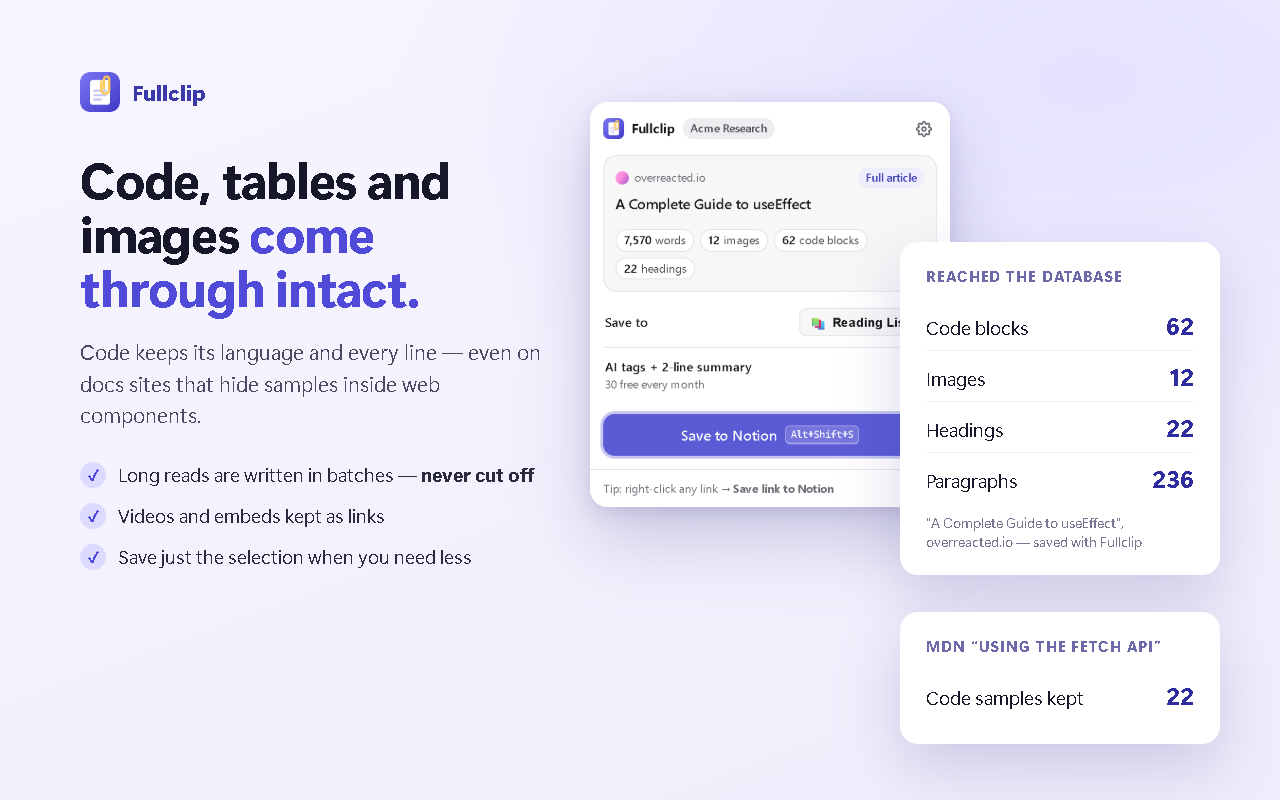
- Code lives inside web components. Some documentation sites, such as MDN, render code samples inside web components (Shadow DOM). A clipper that only reads the regular page tree doesn’t see that code.
- Notion’s API has request limits. The Notion API accepts up to 100 blocks per request and 2,000 characters per rich-text item (Notion API limits). A long article has to be split and written in batches, or it is cut off.
Method 1: Notion Web Clipper (free, quick)
Notion’s official clipper is free and available for Chrome and Safari, and on iOS and Android through the share sheet (Notion help).
- Install Notion Web Clipper from notion.com/web-clipper and log in.
- On the page you want, click the clipper.
- Choose the workspace and the page or database to add it to, then save.
Best for: quick saves, links and short pages, and anything you clip from your phone.
Method 2: Fullclip (full article, AI tags)
- Install Fullclip. Add the Fullclip Chrome extension (coming soon to the Chrome Web Store).
- Connect Notion and pick a database. Connect your Notion workspace and choose the database to save into. Fullclip maps Title, URL, Tags, Summary, Site and Saved date, or creates a “Fullclip Library” database for you.
- Open the article. Open the article, blog post or documentation page you want to keep.
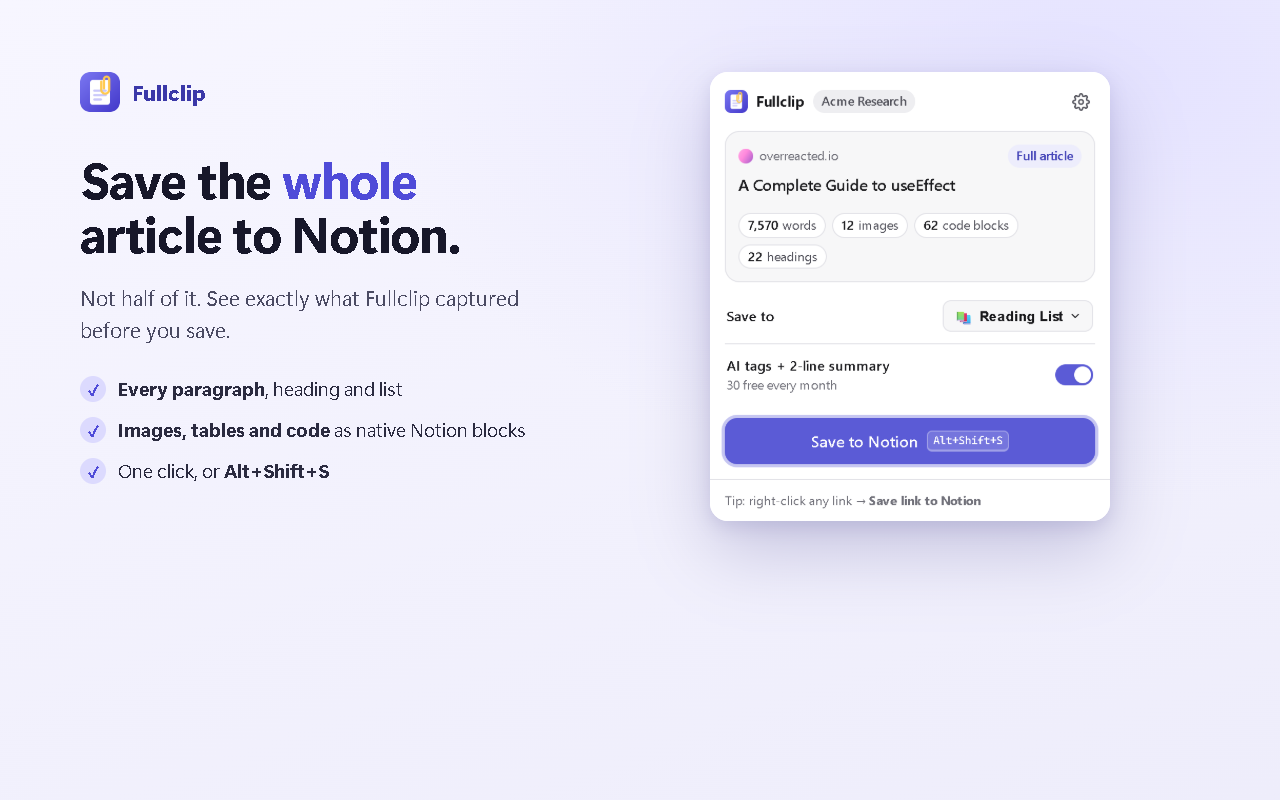
- Press Alt+Shift+S. Press Alt+Shift+S or click the Fullclip button. Check the capture summary — words, images, code blocks and headings — and choose whether to add AI tags and a summary.
- Save. Click Save to Notion. Headings, images, tables and code blocks are written as native Notion blocks; long articles are written in batches so nothing is cut off.
Best for: long reads, tutorials and documentation with code and tables, and building a tagged reading library in Notion.
Method 3: Copy-paste or Markdown import
For a one-off page you can select the article, copy it and paste it into a Notion page; Notion converts much of the formatting. If you have the article as a Markdown file, Notion can import Markdown too. Check code blocks and tables afterwards — they often need tidying by hand.
Best for: occasional saves when you don’t want to install anything.
Tips for a Notion reading database
A simple database makes saved articles easy to find later. These columns work well (Fullclip fills them automatically):
| Column | Type | What goes in it |
|---|---|---|
| Title | Title | The article headline |
| URL | URL | Link to the original page |
| Tags | Multi-select | Topics — reuse the same few tags so filters stay useful |
| Summary | Text | Two sentences on what it says and why it matters |
| Site | Select | The publication or domain |
| Saved | Date | When you saved it |
Add a “Status” select (To read / Read) if you use the database as a reading queue, and create a view filtered by Tags for each project.
Frequently asked questions
Can I save just part of a page?
Yes. Select the text you want and press Alt+Shift+S, or use the right-click menu. You can also right-click any link to save it as a bookmark.
Will code blocks keep their language?
Yes. Fullclip saves code verbatim as Notion code blocks with the detected language, including code that documentation sites render inside web components.
Is there a limit on article length?
No limit on the article. The Notion API accepts up to 100 blocks per request (Notion API limits), so Fullclip writes long articles in several batches.
Do I need to pay?
No. Full-page clipping is unlimited on the free plan, which also includes 30 AI tag + summary runs per month.
What if I am offline?
The clip waits in a queue and is retried automatically; you get a notification when it lands in Notion.
Try Fullclip
Unlimited full-page clipping is free. Pro: $4.99/month, $39/year or $59 once.